Revoice Pro 5
Unlock a complete performance correction solution from the most powerful and versatile vocal processing tool ever made.
Save up to 50% off with an eligible upgrade license
Align. Tune. Double. Unlock a complete performance correction solution from the most powerful and versatile vocal processing tool ever made.


Up your production game with the most transparent and advanced vocal processing software ever developed. Streamline your flow using cutting-edge features such as the Shaper Tool for precise tuning and SmartPitch, which intelligently matches doubles and harmonies.
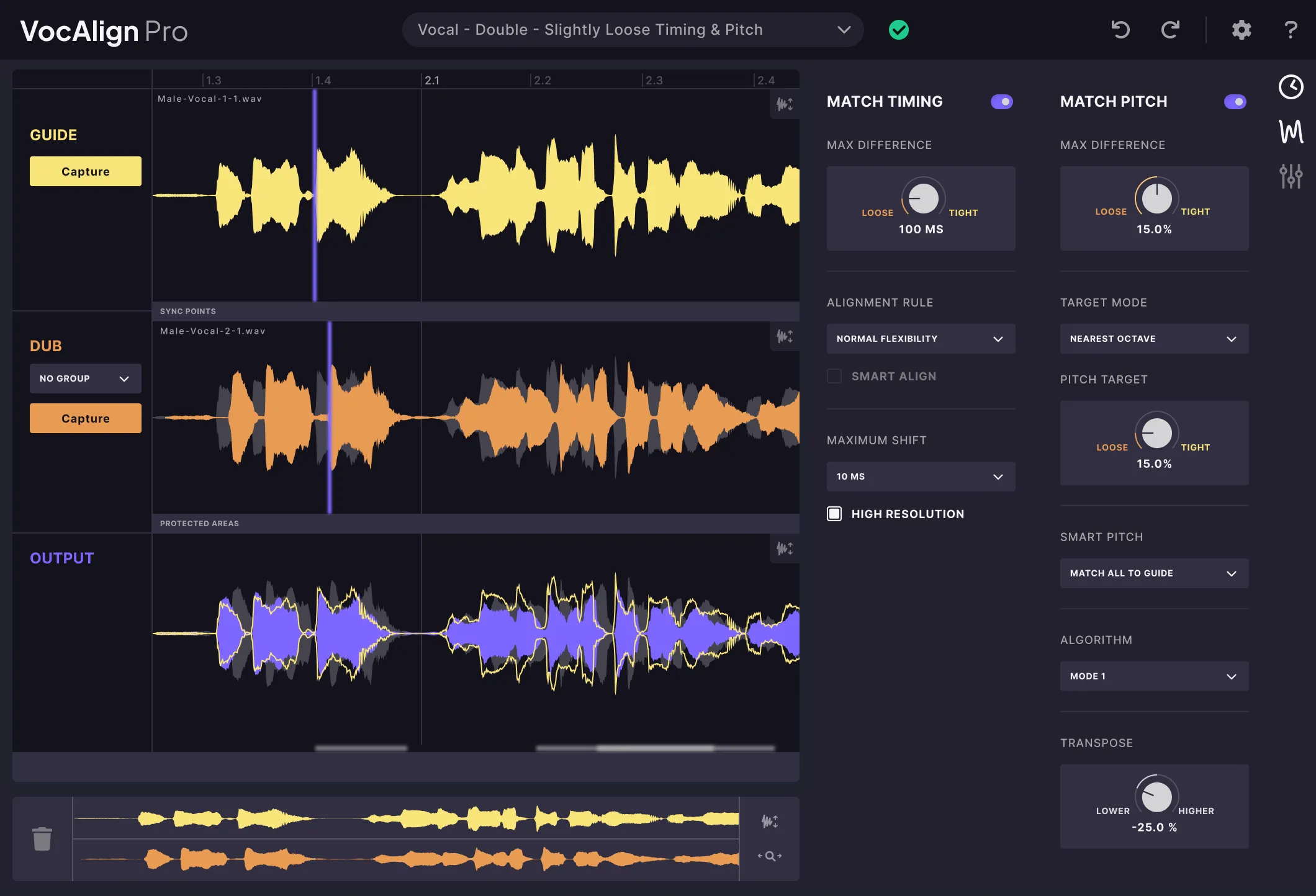
Make alignment headaches a thing of the past with revolutionary vocal alignment processing technology.
SmartAlign intelligently aligns audio in a dub that doesn't start or end at the same points on the timeline as the Guide.
Instantly generate full-bodied, natural-sounding doubles with a vocal doubler that gives you studio-level control over a dynamic vocal production technique.
Understands when to automatically match the pitch of multiple vocal performance tracks—a time-saving gamechanger.
Non-pitched elements never get tuned with the rest of your vocal to make it easy to deal with problem sibilants, consonants and breath noises.
A creative mixing feature that lets you change the timbre of a vocal performance without affecting the pitch.

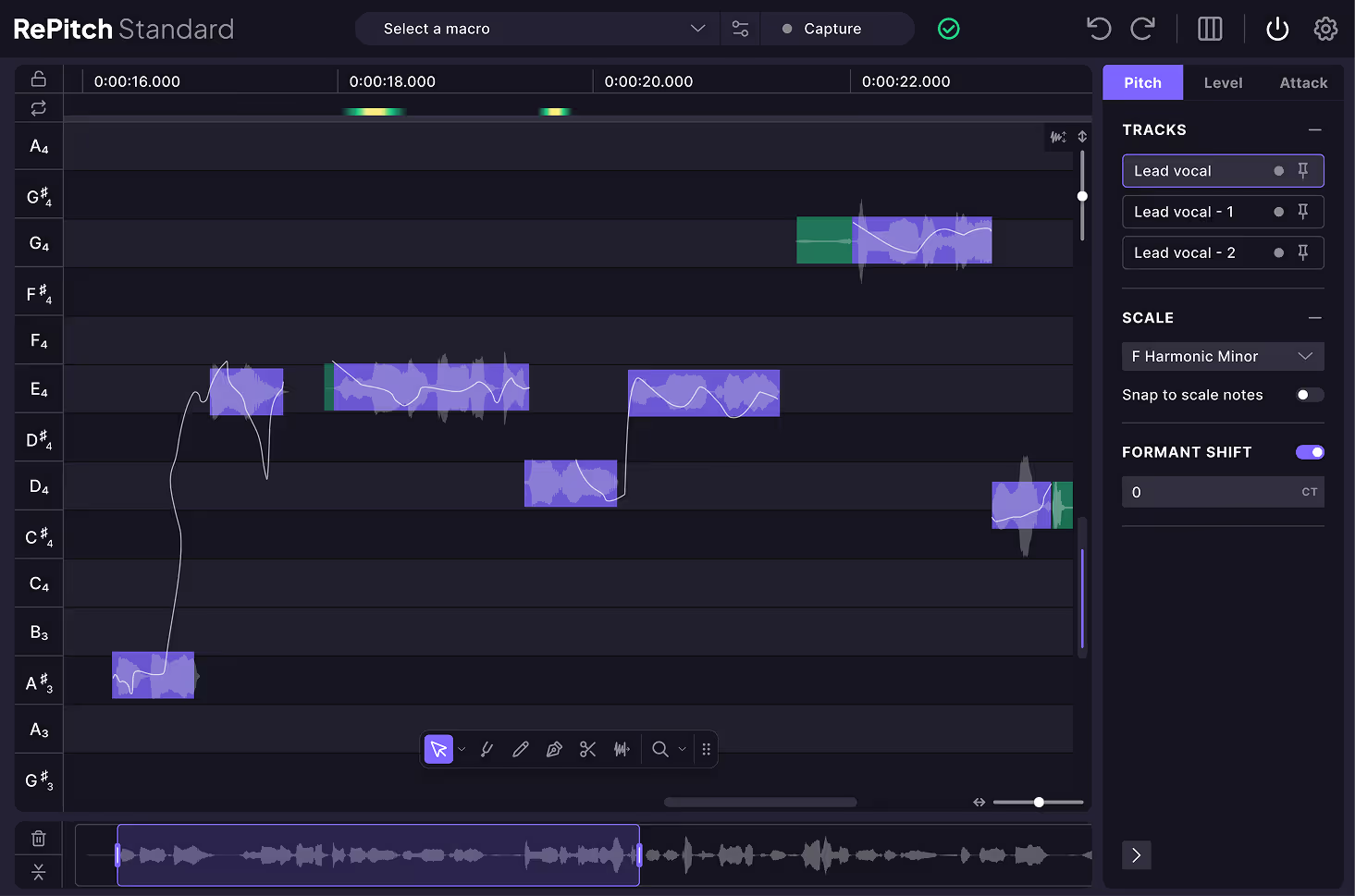
Advanced pitch correction tools for precise, professionally-tuned vocals fast

Shape Points on your pitch or level curve to get ultimate control over your pitch correction - and now are automatically added!

SmartPitch intelligently understands when to match the pitch of your vocal performances, and crucially when not to

SmartAlign decides which section of the guide track your dubs should be aligned with - no pre-editing needed!

Automatically transfer pitch, timing, vibrato and volume inflections from one audio track to another

Augment or diminish the length and speed of the vibrato naturally without affecting other vocals

Allow multiple processes to be grouped together so all parameters can be adjusted via a single panel

Level display for pitched and unpitched notes that allows you to control sibilance for a clean vocal mix

Shift the formants of your performance to change its timbre without affecting the pitch
Advanced vocal processing software for vocals, instruments or dialogue. Click to hear the difference Revoice Pro makes to a performance.


.avif)


Unlock a complete performance correction solution from the most powerful and versatile vocal processing tool ever made.
Save up to 50% off with an eligible upgrade license




%20(1).avif)