Presets
Using VocAlign 6 Standard » Presets
- Working with presets
- Capture Sequence
- Loading a preset
- Inspecting the Results of Processing
- Modifying the preset
- Manually Changing Control Settings
- Saving and managing presets
Working with presets
VocAlign 6's preset library is organised in a task-based hierarchy that makes it easy to find the right setup for the job at hand, be it tightening up a vocal harmony, matching a voiceover artist’s overdub to the original actor’s dialogue, or bringing cohesion to a horn section.
A VocAlign 6 preset is really just one particular configuration of all its parameters, made to help you complete a specific music or post-production task. The factory presets should be useful as starting points for most cases.
Of course, the specifics of your source material may well necessitate the tweaking of those parameters to some extent, so presets should be viewed as highly targeted starting points rather than ‘set and forget’ instant fixes. Having edited a preset to tailor it to your needs, if you want to use it again, be sure to save it as a User Preset (giving it a helpful name) so you can try it on similar material in the future.
Capture Sequence
 |
If you are going to use a different preset on a new Guide and Dub, if you change the preset before you capture the new Guide, it will be applied to the current Dub, which you might not want to happen. |
Here is the safest order to do your operations:
- Before you move on to capture a new Guide, don't change the preset!!
- Capture your new Guide
- Change the preset now (if you want to)
- Capture the Dub
Loading a preset
To load a preset, click the preset menu at the top of the interface

and browse through the menu structure to the preset with the name that most closely describes the source material and results you’re aiming for.
The menu hierarchy is not rigid, but an example of the presets available is shown below:
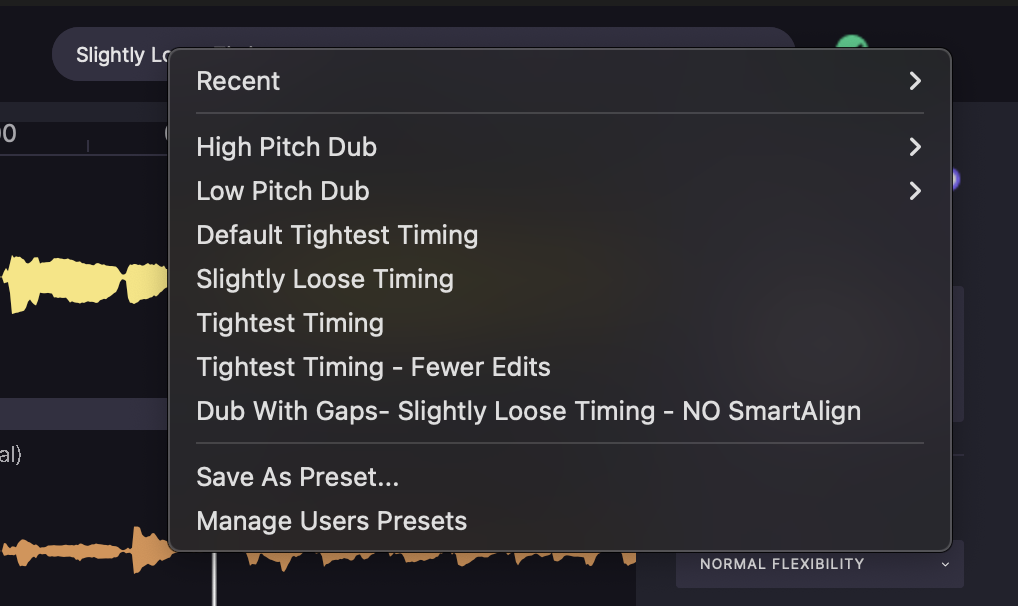
The Recent folder will show the last 5 presets you have used which have their original settings when they were created (and not changed versions).
User Presets - are where you can create and save your own presets, which would also show up in Recent after you use it.
Inspecting the Results of Processing
|
You need to understand when VocAlign 6 automatically processes (which helps speed up your workflow):
|
The Output appears in the bottom of the three default waveform views, as a solid purple waveform overlaid with a yellow outline of the Guide waveform to show time alignment of the Output relative to the Guide.

NOTE: Immediately after starting VocAlign 6, when the screens are empty, if you select a preset before capturing the first Guide and first Dub, you won’t be able to adjust any VocAlign 6 controls in the Timing or Other panels until a Guide and Dub have been captured. However, the selected preset will be applied automatically as soon as the Dub is captured.
The Guide and Dub aren’t part of the preset, so you don’t have to recapture them when you select a new preset. Changing preset with a Dub and/or Guide clip loaded reprocesses the Dub instantly according to the parameters of the new preset to create a new Output.
|
WARNING: If you are going to use a different preset on a new Guide and Dub, if you change the preset before you capture the new Guide, it will be applied to the current Dub, which you might not want to happen. |
 |
TIP: Change presets as much as you want only after you capture a new Guide, not before. |
Modifying the preset
Be sure to try modifying the controls and see what happens in the timing and pitch displays as well as in the sound. You may find you need to make at least minor adjustments to the controls to make a new preset to adapt to your source material. If you do that and want to keep that preset, save it as a User Preset with a good descriptive name.
Manually Changing Control Settings
Overview
VocAlign 6 has two control panels than can be opened and closed using the buttons found on the right hand side of the user interface. They are circled in red in the below image.
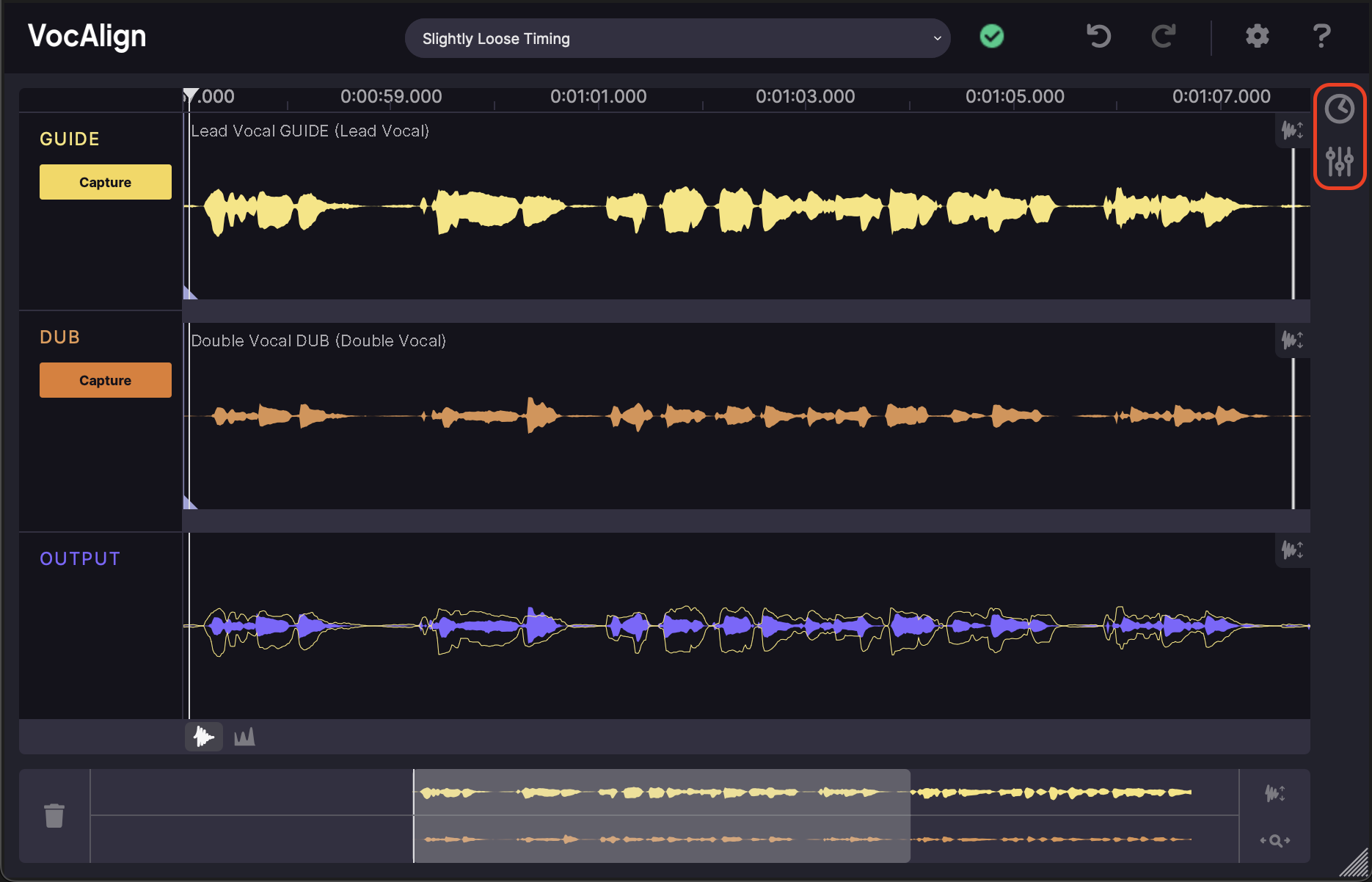
You may sometimes need to make adjustments to the controls on one of the panels after starting from your chosen presets' to adapt the processing better to your source material, or modify the results you hear in the Output to get a better or different results. Then when you're happy with the settings you can close the panels.
Using the control panels is covered in depth in the section Adjusting the Automatic Time Matching.
Saving and managing presets
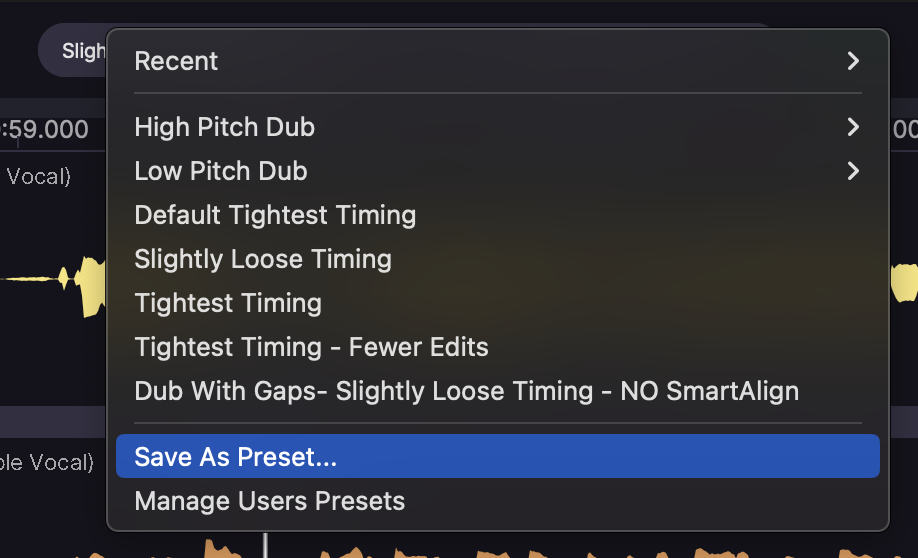
To save all the current VocAlign 6 control settings as a new preset, click the preset menu and select Save As Preset, then give your preset a name and click Save.
Selecting Manage User Presets from the same menu opens the user preset folder in macOS Finder or Windows Explorer, where you can rename and back up your presets.