

%20(1).avif)
.avif)
.avif)
.avif)
Synchro Arts
Save hours in the studio with vocal processing software created specifically to enhance and simplify the processes of music producers and audio engineers.

Hi I'm Marcus and welcome to this VocAlign 6 overview video. Now I'm going to be using VocAlign Pro for the duration of this tutorial, but it's worth mentioning that a lot of what I'm saying will also apply to VocAlign Standard. I will also be sure to mention if a feature that I'm using is Pro-only versus Pro and Standard. The other thing to mention is there are slightly different ways of working with different DAWs such as Ableton Live, Logic Pro, and Cubase—so you're definitely going to want to head over to the YouTube channel. There, you can find DAW-specific videos in terms of how to get audio captured into VocAlign and also how to render it back into your timeline when you're done.
That being said, let's dive in. Okay, so the first premise to talk about with respect to VocAlign is essentially—regardless of whether you're using Standard or Pro—it is based on a guide track and a dub track. The guide track is the track that we want to align to. It has a master timing reference and potentially even a master tuning reference. In VocAlign Pro, we can impart the timing and the tuning onto other tracks.
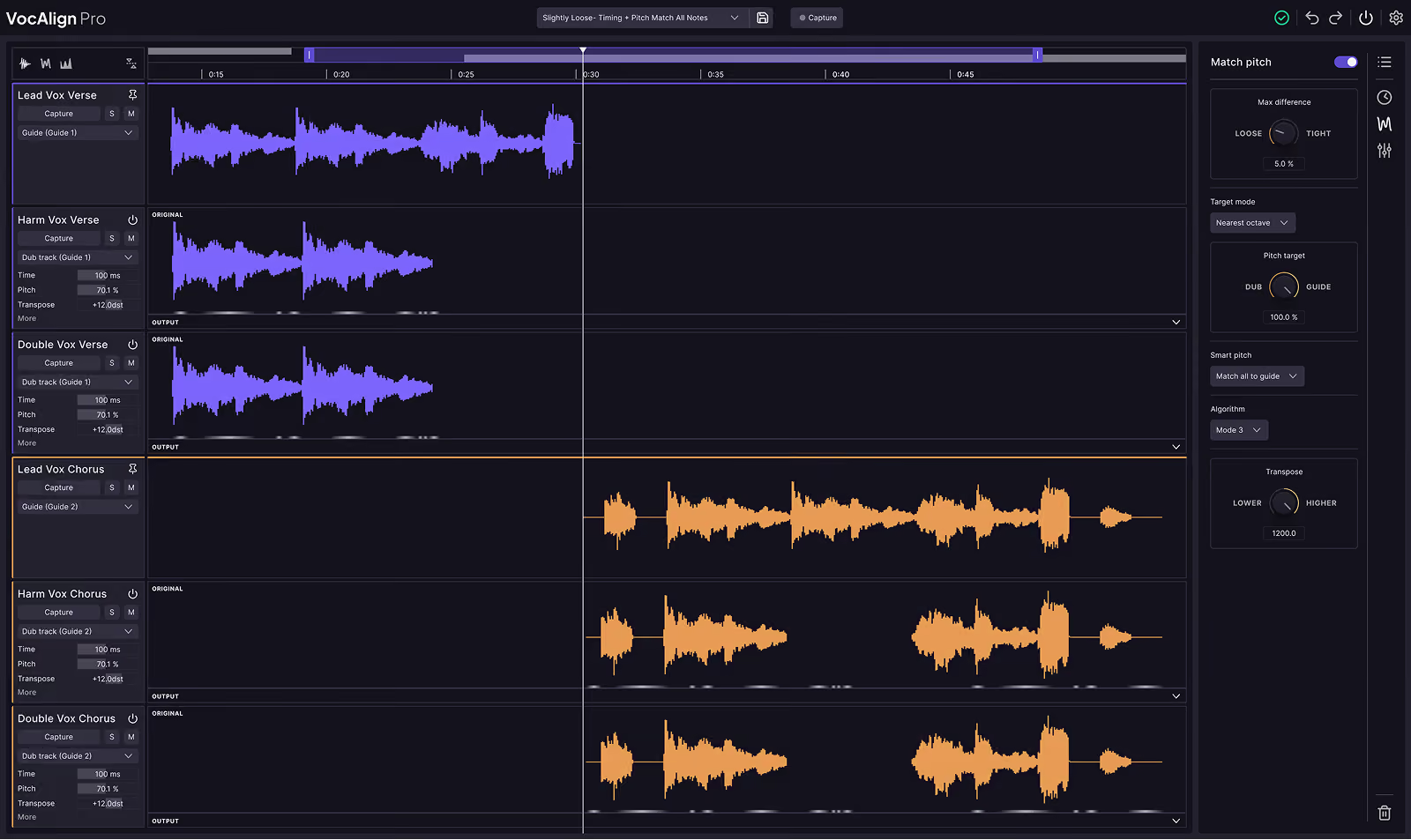
So let's start off by loading an instance of VocAlign. I'm going to just right-click and choose the option to edit. Now here we can take a look at the GUI. First of all, let's break down the GUI. Over here at the top, we have a section with a guide track. Then directly below that we have a dub track, and directly below that we see the output track. This is going to be the same regardless of whether you're working in VocAlign Standard or VocAlign Pro.
On the bottom we have some different displays—we're going to revisit these in a moment as soon as we actually get some audio captured into VocAlign. At the top we have a preset system. If you know the preset that you want to work with, you can actually choose it ahead of time and then when you capture, it will be instantly applied.
Let's temporarily head over to the top right. There are two different areas I want to take a look at. If you have any questions or you need to head over to the Synchro Arts website, just simply click the question mark—it will automatically bring you there. In addition to that, we have a gear wheel that we can choose for different settings.
Let's actually have a listen to these two vocal tracks and listen to the timing of these: "Oh to see you hurt, crying in the rain, no it's not a happy ending…" There are obvious timing discrepancies here. So once you know the actual track that you want to use as your main reference, you're going to select this clip and choose the capture option.
Once you have everything in VocAlign, for the most part it's going to function the same regardless of which DAW you're working in and which plug-in format you're using. So let's now capture our dub track. I'm going to select this bottom one over here. If I know the preset that I want to work with ahead of time, that's something that I can choose. So maybe for this, we know that these are unison tracks and we want to have the time alignment.
Maybe we'll start with that. We can go to vocal and say that this is going to be a double, so maybe I will use slightly loose timing and pitch. We'll choose that preset as a starting point and then we can go ahead and capture. This will be instantly brought in and processed.
If we take a look at the top right, we have these panels. This is going to look slightly different if you're working in VocAlign Standard versus VocAlign Pro. For example, in VocAlign Pro we have the ability to show match timing, match pitch, and a third one called “Other.” “Other” is really great for making some creative choices in terms of working with formants and also the guide and dub ranges. This can be tweaked if you're hearing any artifacts and want to optimize VocAlign to do the best job.
For the time being, let's disable the match pitch option and just take a look at match timing. This makes the most sense for working in the match timing preference. We have some basic functions to enable or disable match timing. We can also increase the amount of alignment happening using the scroll bar at the bottom. We have drag handles on the left and right, and we can use these to drag across specific areas.
Notice what's happening with the timing here. If I enable this and align tightly, you can see that the dub is snapping into place. The outlines in the output track actually represent the guide track. Also notice that if you change the vertical scaling, we're increasing the vertical height—this doesn't change the level, just the visual scaling. We can do the same on the output and dub tracks if we want to adjust those views.
In terms of alignment rules, we have different flexibility options. I would say that “normal” is the best choice in general, but you can try other rules if you're not getting the results you're looking for.
So that’s the basics for working with match timing. Before we go further, let’s have a quick A/B listen. I’m going to take the match pitch off and bring match timing out for a moment:
“Oh it hurts, see you hurting, crying in the rain, no it’s not a happy end…”
Now with alignment: “Oh to see you hurting, see you crying in the rain, no it’s not a happy ending…”
In addition to that, we can also match the pitch. In VocAlign Pro, we can click the “Show Match Pitch” option. When toggled, we can view the pitch trace of the lead vocal in the guide and dub tracks. Using the “Nearest Octave” target mode (which is generally one of the best options), we get a really transparent pitch and timing result.
For example: “See you, see the rain, it’s not a happy ending…”
Compare to the unprocessed version: “Crying in the rain, no it’s not a happy ending…”
And then we bring them back and now you’ll see that not only is the timing being aligned, but also the pitch. This is one of the major benefits of using VocAlign Pro.
Now for the next example, I want to take a different approach. We're going to use two clips that are harmonies. They’re a little out of tune, but not too bad:
“Carry your pain into this lighter, if I could I would cry your…”
These could definitely benefit from being time-aligned and slightly tuned. One unique thing in VocAlign 6 Pro is the new Smart Pitch Mode. I’m going to add an instance of VocAlign 6 Pro to both of these clips by right-clicking and choosing “Edit.” I’ve added it to the audio clips, but we haven’t yet captured them.
This feature is brand new in VocAlign 6 Pro and not included in VocAlign Standard. We now have the ability to create a “Process Group.” That means we can go to the dub track section and choose “New Group for Next Capture.” It automatically creates Group 1 for us. If I click capture, we now have three tracks loaded into VocAlign as dubs.
A quick way to see which track you're working with is to right-click in the dub area and select the audio. You can choose the male lead vocal (the first one we aligned), or either of the background vocals. That’s a really easy way to change which dub you’re viewing.
Now with Smart Pitch Mode, as long as we're viewing the “Show Match Pitch” option in VocAlign Pro, we can choose between three different Smart Pitch modes:
Lastly, I want to take a look at the “Other” tab. One really useful tool is the ability to do creative things—like formant shifting. For example, if we take a listen to this and enable formant shift down, it sounds like:
“I’d fight all your fire, carry your pain until this light…”
Now watch what happens if I move it up: “Until it’s…”
Keep in mind we’re working in Group 1, which has the male and female background harmonies—so you’ll hear both. Now if I move the formant shift down again:
“I’d fight all your fire, carry your pain until it’s lighter, if I could I would cry all your tears away, lift you up higher, if I could I would take your place…”
So this is the basics. That’s pretty much everything you need to know to get started with working in VocAlign. I hope you enjoyed this video and I’ll catch you in the next one. Cheers!
Save hours in the studio with vocal processing software created specifically to enhance and simplify the processes of music producers and audio engineers.

