

%20(1).avif)
.avif)
.avif)
.avif)
Synchro Arts
Save hours in the studio with vocal processing software created specifically to enhance and simplify the processes of music producers and audio engineers.

Let's take a look at some of the key differences and reasons to upgrade from VocAlign Project 5 to VocAlign 6 Standard.
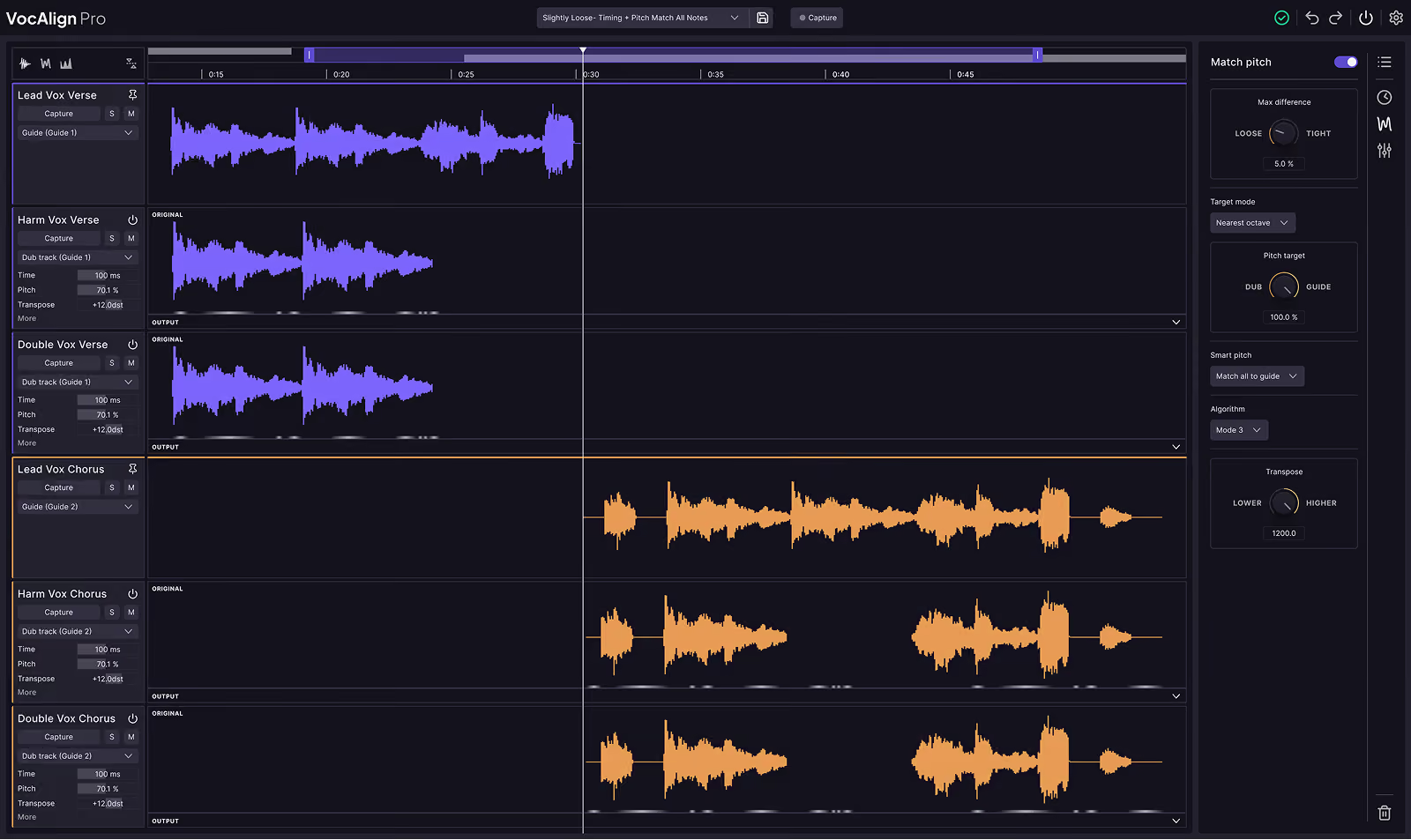
Both VocAlign 6 Standard and VocAlign 6 Pro feature a dark mode GUI, which can be easier on the eyes—especially if you're working late or in super long studio sessions. Secondly, there’s a massive improvement in navigation and basic actions like zooming in and out of very specific areas.
In addition to that, we also have the ability to maximize screen real estate by showing or hiding different panels. For example, if I want to temporarily maximize screen space on a smaller laptop or fully expand on a larger screen like this 27-inch 4K monitor, I can resize and open as much as I need.
This may seem small, but we now also have undo and redo functionality. Sometimes you might make a few changes to a preset you're working with and want to test different settings. You can simply click undo a couple of times to return to a previous state—or redo to toggle forward again. This makes it easy to compare versions and dial in what sounds best.
But by far one of the biggest changes is Pro Tools ARA compatibility. With both clips selected, I can simply right-click and choose the option to edit with VocAlign 6 Standard. From there, I just need to choose my guide and dub tracks—they’re then automatically ready for instant playback:
"If I could, I would cry all your teardrops away..."
In addition to instantly auditioning changes you’ve made, there are also new display options. For example, we now have the ability to toggle between standard time units and bars/beats mode—super helpful for syncing with your DAW timeline. As I click around in the VocAlign 6 Standard GUI, you’ll see it updating in the Pro Tools timeline in real time.
Once you’re happy with the results, just right-click the clip and choose the render option. You can render to the original playlist or send it to a backup playlist.
When working in non-ARA-based DAWs like Ableton Live, there used to be a lot more manual work involved. For example, if you needed to capture multiple dub tracks—say, aligning five vocals to a lead—you had to capture them one by one in real time.
With VocAlign 6 Standard, you can now hold the Shift key and click “Capture” to set both dub tracks into capture mode simultaneously. From there, just go back to your timeline start point, hit play, and you’ll capture everything together:
"Fight all your fire, carry your pain until it’s light..."
Now, instead of doing that in two separate steps, each instance of the plugin has both the guide and the dub already loaded. You’re ready to move forward and get on with your session right away.
So those are just some of the enhancements and upgrades we see when moving from VocAlign Project 5 to VocAlign 6 Standard. Hope you enjoyed this video, and we’ll catch you in the next one. Cheers!
Save hours in the studio with vocal processing software created specifically to enhance and simplify the processes of music producers and audio engineers.

